
If a Japan travel eSIM stops working, keep its profile installed while you find out which layer failed. A phone with no network registration, one with signal but no data, and one whose hotspot fails despite working phone data need different fixes. Deleting the eSIM early can make an already frustrating arrival harder if its QR code cannot be reused. Work through reversible checks, one change at a time, while Wi-Fi is available.
Save the order and package details first. Take screenshots of the selected mobile-data line, roaming switch, APN, network name, signal display, plan status and any error message. A supplier may need those details to diagnose or refund a failed connection. If you have not installed the profile yet, the broader Japan eSIM guide separates product choice, installation and activation; this page starts after setup has gone wrong.
↔ Scroll table left or right
| What you see | Check first | Do not assume |
|---|---|---|
| No signal or network name | Enabled travel line, activation state, carrier lock and named partner network. | An APN change can make an unregistered phone join a network. |
| Signal bars but no internet | Selected data line, travel-line roaming, exact package APN and remaining allowance. | Bars prove that a data session is valid. |
| Data works but very slowly | High-speed quota, daily fair-use threshold, local congestion and location. | The eSIM has entirely stopped working. |
| Phone data works; hotspot does not | Plan tethering permission, fair-use limits and device hotspot settings. | Every data plan allows sharing. |
The first ten minutes: keep the profile and isolate the symptom
Turn on the Japan eSIM line and select it for mobile data. If the home SIM remains active for calls or verification texts, keep its data roaming disabled to avoid unintended use. Temporarily disable automatic switching between data lines while troubleshooting so the phone cannot silently move your test back to the home plan. Toggle airplane mode briefly, let the travel line register, and test a small webpage with Wi-Fi off. Record the result before changing another control.
Testing with Wi-Fi off matters because a successful hotel or airport Wi-Fi page does not show that mobile data works. Use one simple page rather than a messaging app that may already have cached conversations; then look at the mobile-data counter or network indicator for the selected line. Keep calls and texts on the home line if you need verification codes, but verify that the data line itself is the purchased travel profile. Change one setting at a time and repeat the same small test. Otherwise, a connection that recovers after several simultaneous changes cannot tell you which setting was wrong.
Installation and activation need to be separated. A profile can appear in the phone's SIM list while the package is still pending, has expired, or will start only when it first attaches to a supported Japanese partner. Another package can start its validity clock at installation. Read the exact product terms and original activation timestamp. The late-arrival validity guide explains why calendar days and rolling 24-hour plans can look very different around midnight.
Do not erase the profile as a generic reset. Some profiles and QR codes are limited to one installation. If a supplier specifically instructs deletion and reinstallation, keep that instruction in writing and confirm that the replacement can actually be downloaded before removing the existing line. The compatibility checklist helps when installation itself, rather than mobile data, is the fault.
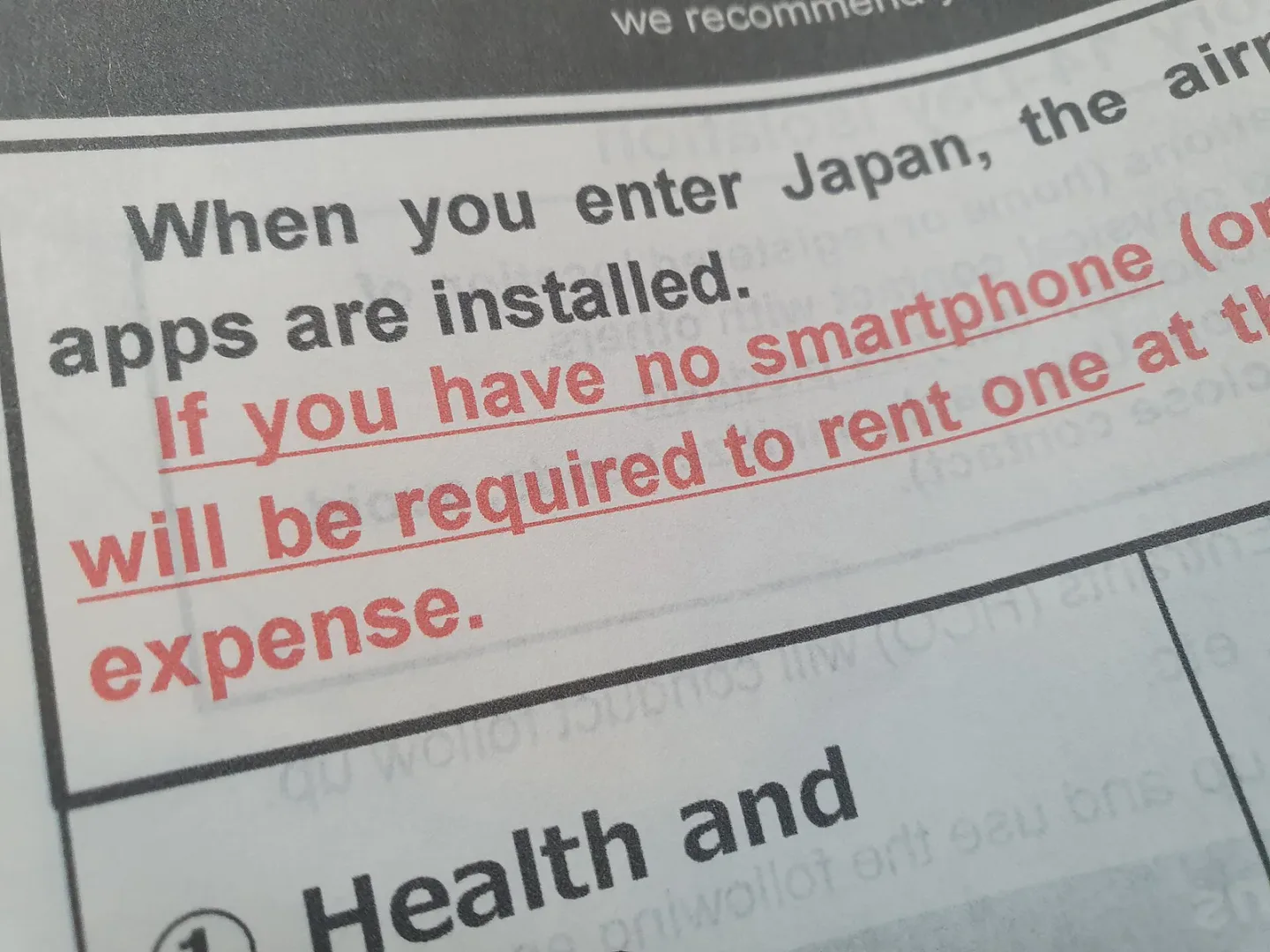
The airport advisory sign in this photograph is a reminder to resolve connectivity while a terminal Wi-Fi connection is still available. It does not show a phone setting or an eSIM service status.
No signal: examine registration, not the APN
A blank network name or persistent “No Service” means the phone has not registered on a usable partner network. Confirm that the eSIM is enabled and the plan's activation conditions have been met. Check the phone's carrier-lock status. On iPhone, Settings → General → About shows “No SIM Restrictions” next to Carrier Lock for an unlocked device; a locked phone cannot be fixed by guessing an APN. The exact wording may vary by region or iOS language.
Refresh registration with airplane mode. If automatic network selection still fails and the package lists partners, try only those named networks, allowing time after each selection. A random network may show bars yet still reject the data session. If the eSIM menu is missing, the EID is unavailable, or company management restricts SIM controls, note the exact model, sales region, OS version and lock state for the provider. Model and EID checks are more useful here than repeated network resets.
Coverage is also local. A plan that connects outside but fails in a tunnel, basement or remote valley calls for a location test before treating the entire profile as defective. This matters especially on rural drives or islands: Hokkaido eSIM coverage and Okinawa eSIM coverage involve different route risks from a Tokyo–Osaka–Kyoto rail itinerary.
Signal without internet: verify which line owns data
With bars but no usable page, revisit the selected mobile-data line before editing technical fields. Many travel eSIMs reach Japan through a roaming agreement and require data roaming on the travel line. That is different from enabling roaming on the home SIM. Follow the package instruction: some products configure an APN automatically, while others require a specific value. Copy only the APN supplied for that package and avoid borrowing a value from another brand's support page.
After a line, roaming or APN change, briefly refresh the radio and wait for registration, then test again. Check the package dashboard for active status and remaining high-speed data. A wrong selected line, an unactivated plan and an exhausted allowance can all produce the same “bars, no page” impression. The Airalo–Saily–Klook comparison shows why activation, network and support rules must be read at product level. Marketplace plan terms can differ even when both listings say “Japan eSIM.”
On iPhone, open the travel line's cellular settings to confirm it is on, then confirm Cellular Data points to it. Disable Allow Cellular Data Switching during diagnosis if both lines are active. Check that line's Data Roaming control only if the supplier says the travel plan requires it. Apple's carrier-lock field under Settings → General → About is a separate gate. On Pixel, Settings → Network & internet → SIMs contains mobile data, roaming, operator and APN controls, though menu labels and availability depend on Android version and carrier. Samsung and other Android devices may place the controls elsewhere; use the same logic, not a memorised menu path from a different phone.
Slow data and a failed hotspot are separate cases
A throttled plan can remain connected while maps, images or app updates become painfully slow. Check the provider dashboard for remaining high-speed data and a daily fair-use threshold. Test a small text page in an open area; a crowded station or indoor dead zone can create temporary slowness even before quota runs out. The 1 GB, 2 GB and unlimited comparison explains why “unlimited” may still have a speed policy. The seven-day allowance guide helps estimate whether video, cloud backup or hotspot use exhausted the fast tier sooner than expected.
If browsing works on the phone but another device cannot use its hotspot, check the plan's tethering permission before changing APNs again. A permitted hotspot may still have a separate fair-use cap or drain the host phone's battery during a long day. Two travellers sharing one eSIM adds the single-device failure risk: both people lose live access when that phone runs flat or leaves with one person. Diagnose phone data and hotspot as two distinct tests.
Separate a hotspot password problem from a plan restriction as well. If the second device cannot join the phone at all, first check its saved password, Wi-Fi connection and whether the host device is actually broadcasting. If it joins but cannot load the same simple page that works on the host phone, the package's tethering rule becomes more relevant. This order avoids treating every connection failure as a network or APN fault.
Airport Wi-Fi buys time to keep the onward trip intact
If the problem appears just after landing, remain on airport Wi-Fi long enough to open the supplier help page, save the hotel address and download the onward route. Capture ticket QR codes and confirmations before boarding a train or collecting a car. A late arrival makes this more urgent because the last transport connection can be less forgiving than the eSIM issue itself. The first-time itinerary helps place the arrival within a wider route; the Tokyo airport transfer guide helps protect the final connection, and the bus boarding guide can be saved before a rural transfer.
For a journey with timed buses or mountain access, offline maps and stored ticket details are a resilience measure even after the eSIM starts working. The digital-ticket backup guide covers that preparation, while autumn route planning shows how a missed connection can affect a seasonal day. A phone line is one part of the travel chain, not the only copy of a reservation.
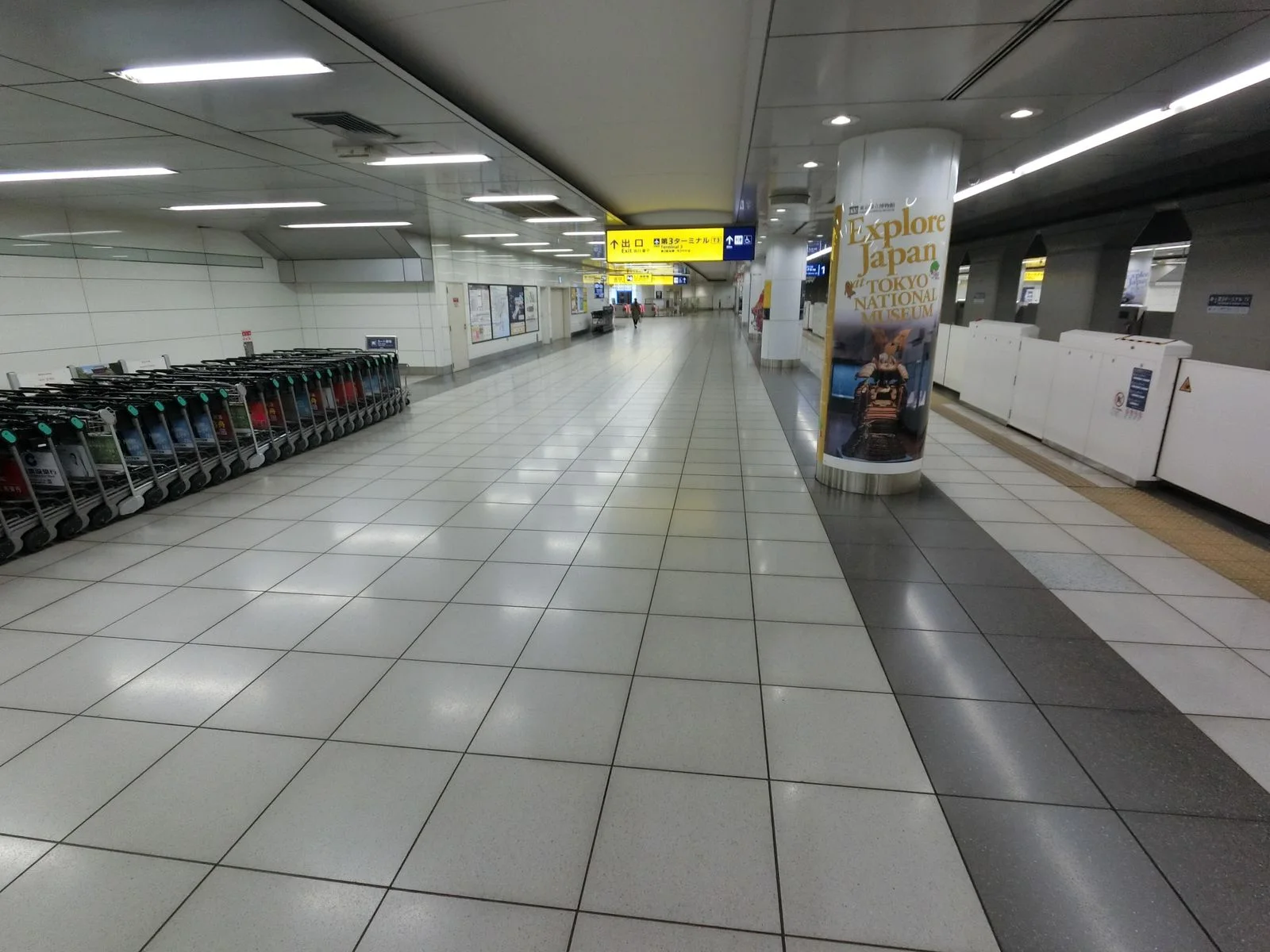
This Haneda Terminal 3 rail concourse photograph shows the kind of transfer area where saving the route while Wi-Fi is available can help. It is not an eSIM setup screen.
Give support a reproducible case
Send the order number, exact package, phone model and OS version, location and local time, active data line, roaming state, APN, selected network, signal display, plan status and remaining allowance. Say which symptom you saw: no network, bars without data, severe slowdown or hotspot-only failure. List each change and its result. Screenshots of those states are more useful than a message saying only “it doesn't work.”
If support advises profile deletion, ask whether that exact QR or replacement can be installed again and preserve the answer for a refund review. Until then, the safe order is: keep the installed line; identify the symptom; verify data-line ownership; use roaming only where required; refresh registration; check the exact APN and named partner networks; confirm activation and allowance; test hotspot separately; then verify device compatibility. This sequence keeps both the line and the evidence available while you locate the failed layer.
Additional mobile-data and trip guides
Japan eSIM complete guide · Japan eSIM complete guide · Japan eSIM complete guide · Japan eSIM complete guide · before · before · changing · Japan eSIM phone compatibility guide · Airalo vs Saily vs Klook comparison · 1GB vs 2GB vs unlimited data guide · Japan eSIM for 7 days comparison · Regional · different · transfer · autumn · transport · Apple Support — Use eSIM while travelling · Apple Support — If you can't set · Sakura Castle: The Stamp Is Open 24/7 · Osaka Attractions With Kids: Choose by Age, · Osaka Long-Stay Hotels for 5–7 Nights: Laundry, · Kansai 7-Day Itinerary From Osaka: One Hotel · Asakusa Samba Carnival 2026: When to Arrive, · Niseko Ski Trip Guide 2026–27: Transport, Areas, · Vessel Hotel Campana Okinawa Review: Does Free · Hokkaido Winter Activities Without Skiing: Ice Fishing, · Japan’s 100 Famous Castles No.3: Matsumae Castle · Tokyo Skydiving Guide: Skydive Nippon Booking, Transport · Beppu Hells 2-Day Itinerary: Route, Transport and · Shirakawa-go Autumn Leaves: Buses, Viewpoint, Luggage and · Hotel Sonia Otaru: Is a Canal-View Room
If the phone problem happens on a Tokyo arrival, find a first-night Tokyo room with a simple transfer before attempting lengthy network fixes on the move.